
Before you start
Brreg Sync connects HubSpot companies to public business data from the Brønnøysund Register Centre. Retrieval of the latest available structured annual accounts is optional and off by default. You should have Super Admin or Marketplace Access in HubSpot and permission to manage company properties.
- The integration supports Norwegian businesses and organisations with an organisation number.
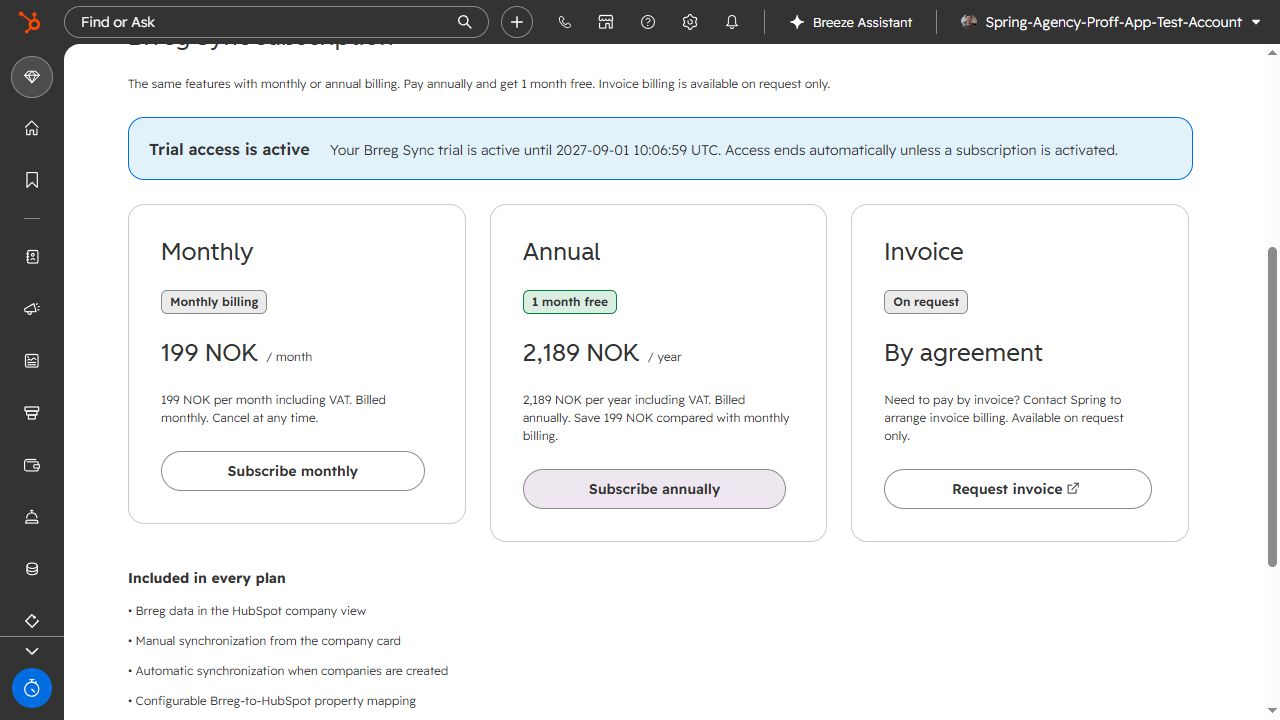
- Monthly billing: NOK 199 per month, including Norwegian VAT.
- Annual billing: NOK 2,189 per year, including Norwegian VAT. Pay for 11 months and get 12: one month free and NOK 199 saved compared with monthly billing.
- Invoice billing is available on request only, by agreement with Spring Agency.
- All features are included. An active subscription or a time-limited trial granted by Spring Agency is required to use the app features.
- Subscriptions purchased in the app are managed and cancelled through Stripe. Contact Spring Agency for invoice arrangements.
Install the app
- Open the installation page and select Install in HubSpot.
- Select the correct HubSpot account. Verify the portal ID before continuing.
- Review the requested access to companies, company properties and lists, then select Connect app.
- You will be taken to the Brreg Sync settings inside HubSpot.
Activate a subscription or trial
Spring Agency may grant a time-limited trial directly to your HubSpot account. App access ends automatically when the trial expires. A trial does not automatically convert into a paid subscription.
- Open the Subscription tab in the Brreg Sync settings.
- The tab shows three cards: Monthly, Annual and Invoice. If a trial is active, its end date is also shown here.
- Select Subscribe monthly for NOK 199 per month or Subscribe annually for NOK 2,189 per year. Both prices include Norwegian VAT and the same features.
- Select Continue to Stripe checkout on your chosen card and complete payment in Stripe.
- Return to HubSpot and reload the settings page. Access is shown as active after the Stripe confirmation has been processed.
Need to pay by invoice?
The Invoice card is marked On request. Select Request invoice to open an email draft to Spring Agency. Include your company, organisation number and billing address. Invoice billing and activation are arranged directly with Spring Agency.
Already have a subscription?
Select Prepare secure billing access, then Open Stripe billing to view your current billing period, renewal and available changes. Existing subscriptions do not switch to annual billing automatically. Contact Spring Agency if the change you need is not available in Stripe.
Configure property mapping
- Open Property mapping.
- Map Organisation number to the HubSpot property that stores the Norwegian organisation number. This mapping is required.
- Add the other Brreg fields you need and select the destination HubSpot property for each field.
- Check the data type. Address lines are automatically joined with commas and can be mapped to a single-line property. Other list values are joined with line breaks and must be mapped to a multi-line text property.
- Save the mapping and test it on one known company before running a bulk update.
Use Brreg Sync on a company
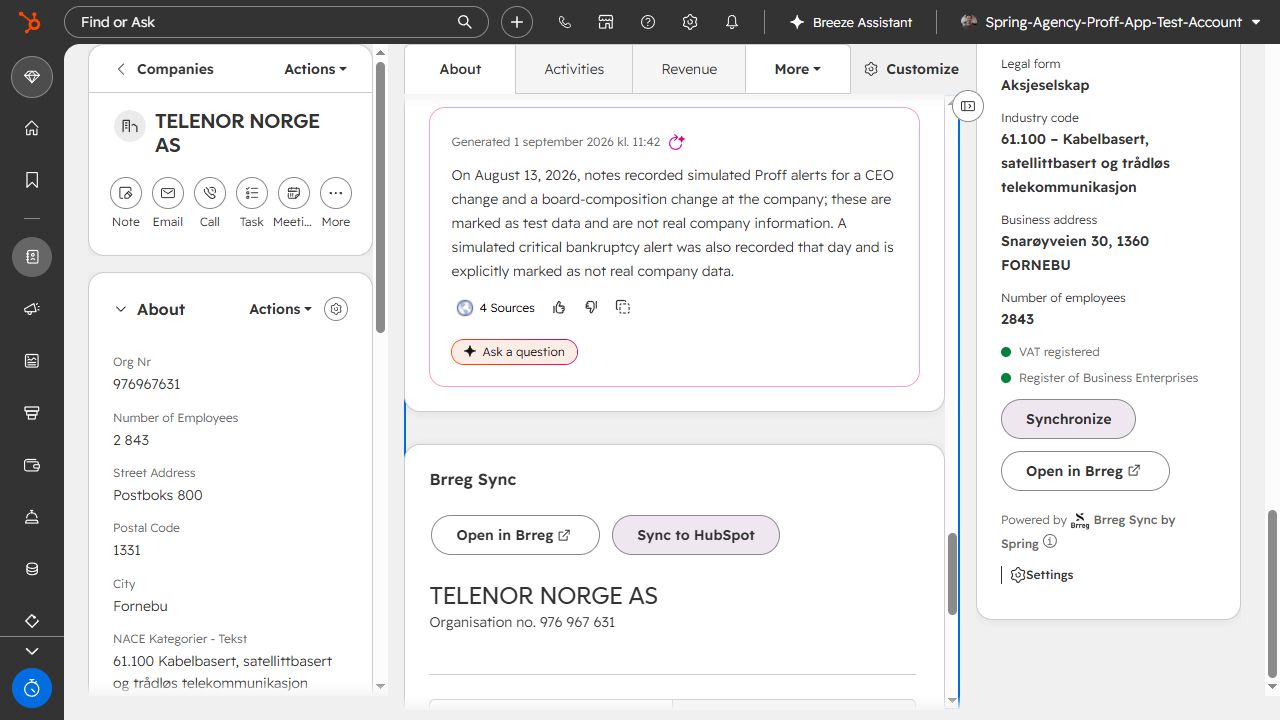
Brreg Sync is available both as a dedicated tab and as a sidebar card on HubSpot company records.
- If an organisation number is present, the matching entity is retrieved directly.
- If it is missing, the app searches using the HubSpot company name.
- An unambiguous 100% name match can automatically populate the organisation number and the other mapped data.
- For an uncertain match, the app shows suggestions and requires the user to select the correct entity.
- You can also search manually and choose the correct entity.
Annual accounts
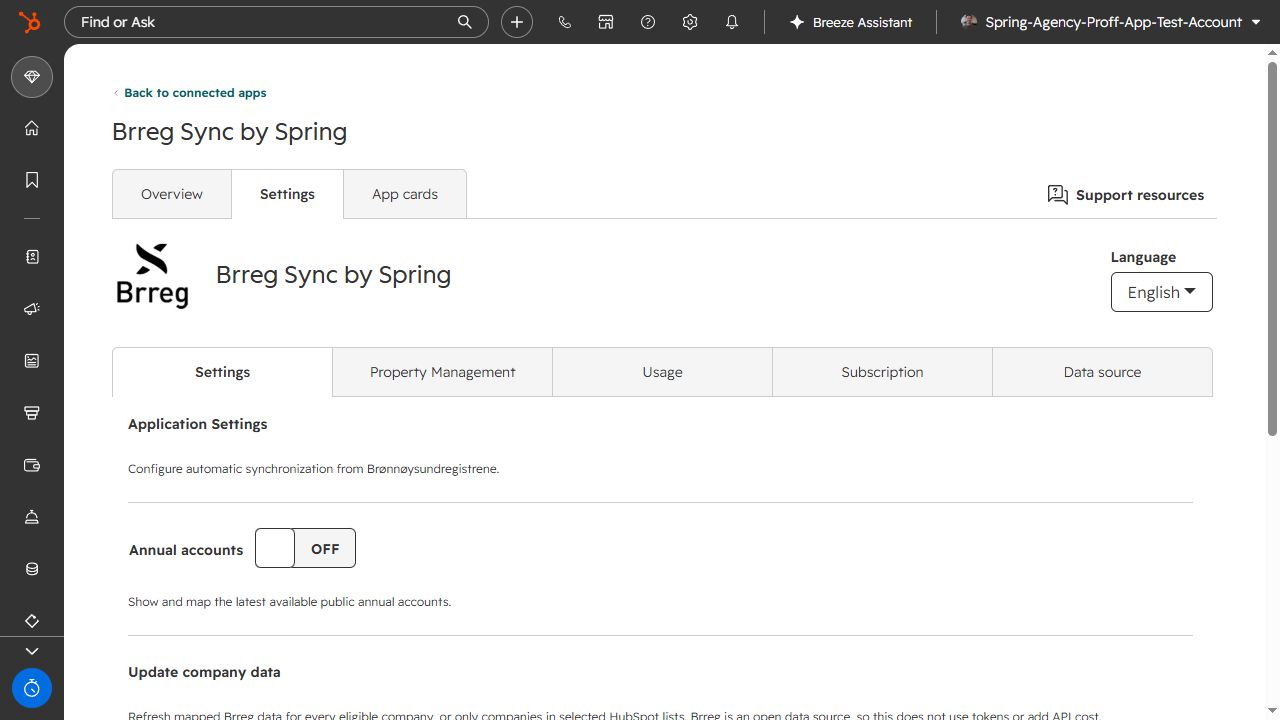
Retrieval from the Registry of Company Accounts is off by default and is controlled for the entire HubSpot account from the Brreg Sync settings.
- Open Brreg Sync Settings.
- Find Retrieve the latest public annual accounts.
- Turn on the toggle and save to enable the accounting view and new accounting lookups.
When the feature is enabled and figures are available from the Registry of Company Accounts, the company tab shows the latest public annual accounts. The sidebar card shows a shorter summary.
- The view includes operating revenue, operating profit, profit before tax, annual result, assets, equity and liabilities.
- Brreg Sync calculates operating margin, profit margin, equity ratio and debt-to-equity ratio from the reported figures.
- A link opens the annual accounts copy held by the Brønnøysund Register Centre as a PDF.
- Accounting fields can be mapped to HubSpot properties like any other Brreg field. Their labels start with Regnskap or Nøkkeltall.
Choose Norwegian or English
The company tab and sidebar card automatically follow the HubSpot user's language, so they do not display separate branding or a language selector. On the settings page, each user can switch manually between Norsk and English. Changing language does not modify synchronised data or property mappings.
Update lists or the entire HubSpot account
- Open the Settings tab and find Update company data.
- Select all companies or one or more HubSpot company lists.
- Preview the update. The app shows how many companies will be processed.
- Confirm the update and monitor its status on the same page.
A bulk job continues in the background. Accounting data is requested only when the accounting feature is enabled and at least one accounting field is included in the property mapping. Do not start another job until the active job has finished.
Monitor usage
The Usage tab shows searches and updates by day, month and source. There is currently no usage limit, but the overview helps you monitor account activity.
Troubleshooting and support
The app cannot find a company
Check the spelling, remove unnecessary department names, or search for the nine-digit Norwegian organisation number.
Properties are not updated
Confirm that the subscription or trial is active, that the organisation number property is mapped, and that the HubSpot property has a compatible data type.
Accounting figures are missing
First confirm that Retrieve the latest public annual accounts is enabled in the settings. Then check whether the Brønnøysund Register Centre has published structured annual accounts for the business. These figures are not available for every organisation.
An error displays a tracking ID
Include the tracking ID, portal ID and approximate time in the support form. Never send OAuth, HubSpot or Stripe credentials.
Disconnect and uninstall
- If a paid subscription is active, open Subscription and cancel it in Stripe first.
- Select Disconnect and uninstall app and confirm.
- The app's OAuth access and HubSpot features are removed, and synchronisation stops immediately.
Values already written to HubSpot company records remain in the portal. Information stored by Spring Agency is deleted or anonymised in accordance with the Privacy Policy.